Verify with ChimeraTool before checkout
Why verification exists
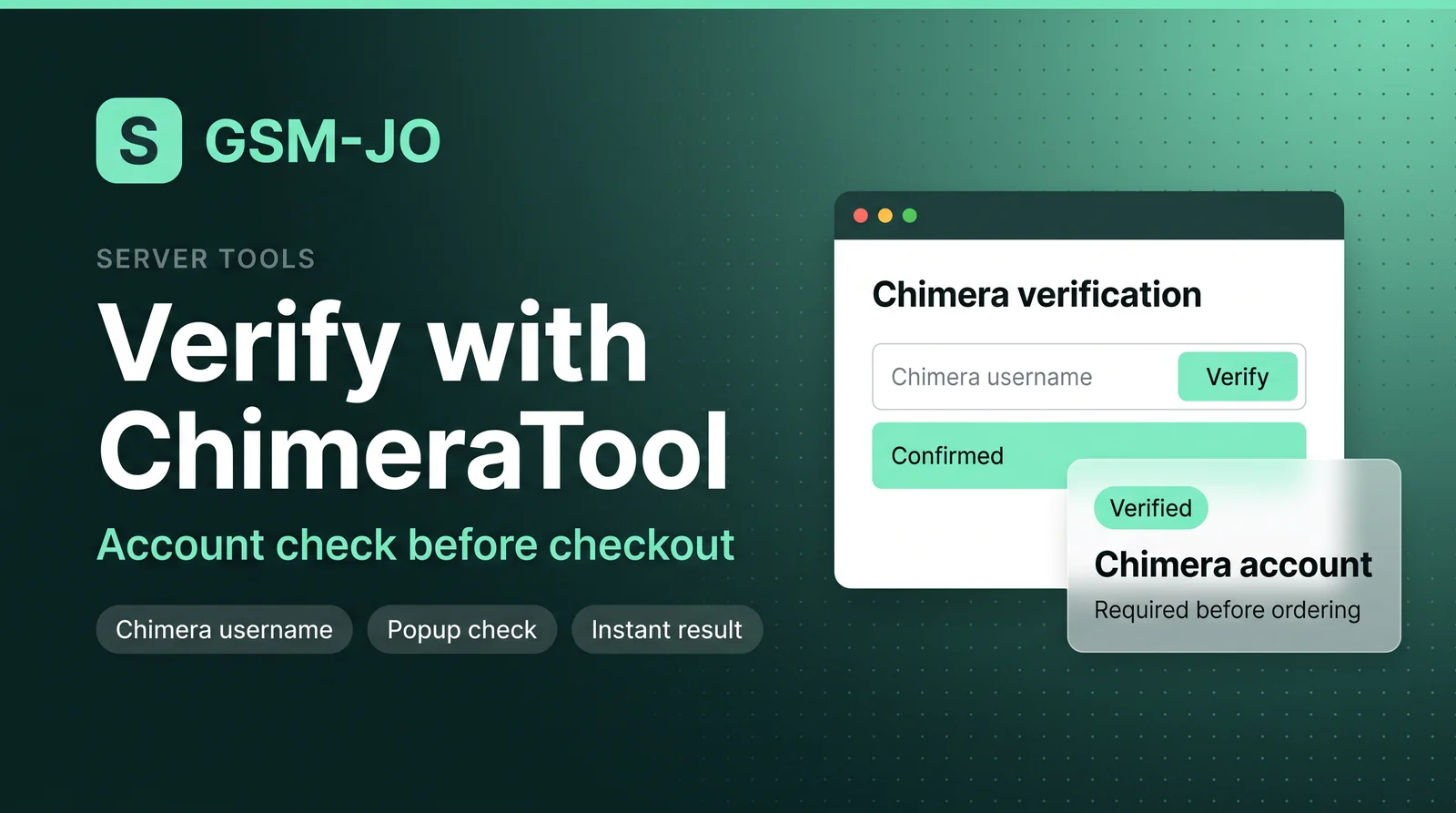
Services routed to the ChimeraTool provider need the buyer's Chimera account checked before checkout, and the storefront then shows the Verify with ChimeraTool badge. The licence is sold against a Chimera username through the reseller selllicence command, so the storefront verifies that username first. This keeps the activation tied to the account that will use it.
Your Chimera username, not an IMEI
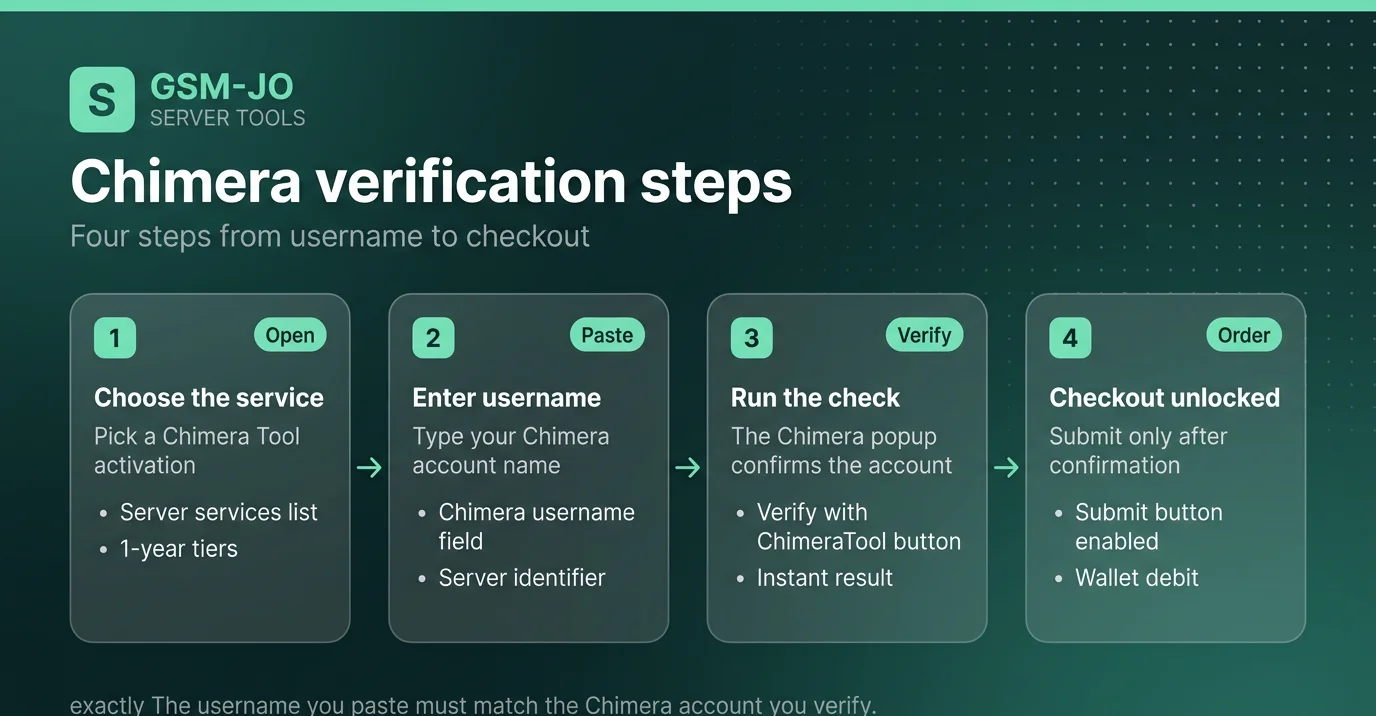
For these services the identifier you paste is your Chimera username. The Chimera username field submits as the order's server identifier. Whatever you type becomes the order's server_identifier, and it is forwarded to the module as the target user for selllicence. So type the exact username you want the activation applied to.
The popup check
- The ChimeraVerifyBadge sets window.chimeraConfig with hash equal to the MD5 of the reseller username.
- It loads Chimera's reseller transaction script once.
- Chimera's own script renders a Verify with ChimeraTool button.
- Chimera fires the chimeraAuthSuccess event when the check succeeds.
The submit button stays disabled until the username you typed exactly equals the verified username. If the two differ, even by case or spacing, you cannot submit. Changing the Chimera service resets verification, so you run the check again for the new service.
Guest behaviour
The verification hash is the MD5 of the reseller username on the provider row. Guests have no session user, so they see the notes field instead of the Chimera badge and checkout is not gated by Chimera verification.
Admin sync setup
When syncing ChimeraTool in admin, the sync needs only a Username and API Key. ChimeraTool ignores the Host URL field — the base URL is fixed to Chimera's reseller API. The sync imports licences as Server services, so tick Server services in the sync dialog.
Before you checkout
- Have your Chimera username ready.
- Type it into the Chimera username input (name server_identifier).
- Use the Verify with ChimeraTool button in the popup and complete the check.
- Confirm the typed username exactly matches the verified one, then submit.
- If you change the Chimera service, verify again.
The same username reaches the module as the target user for selllicence, so verification and fulfillment refer to one account.