How to register on GSM-JO
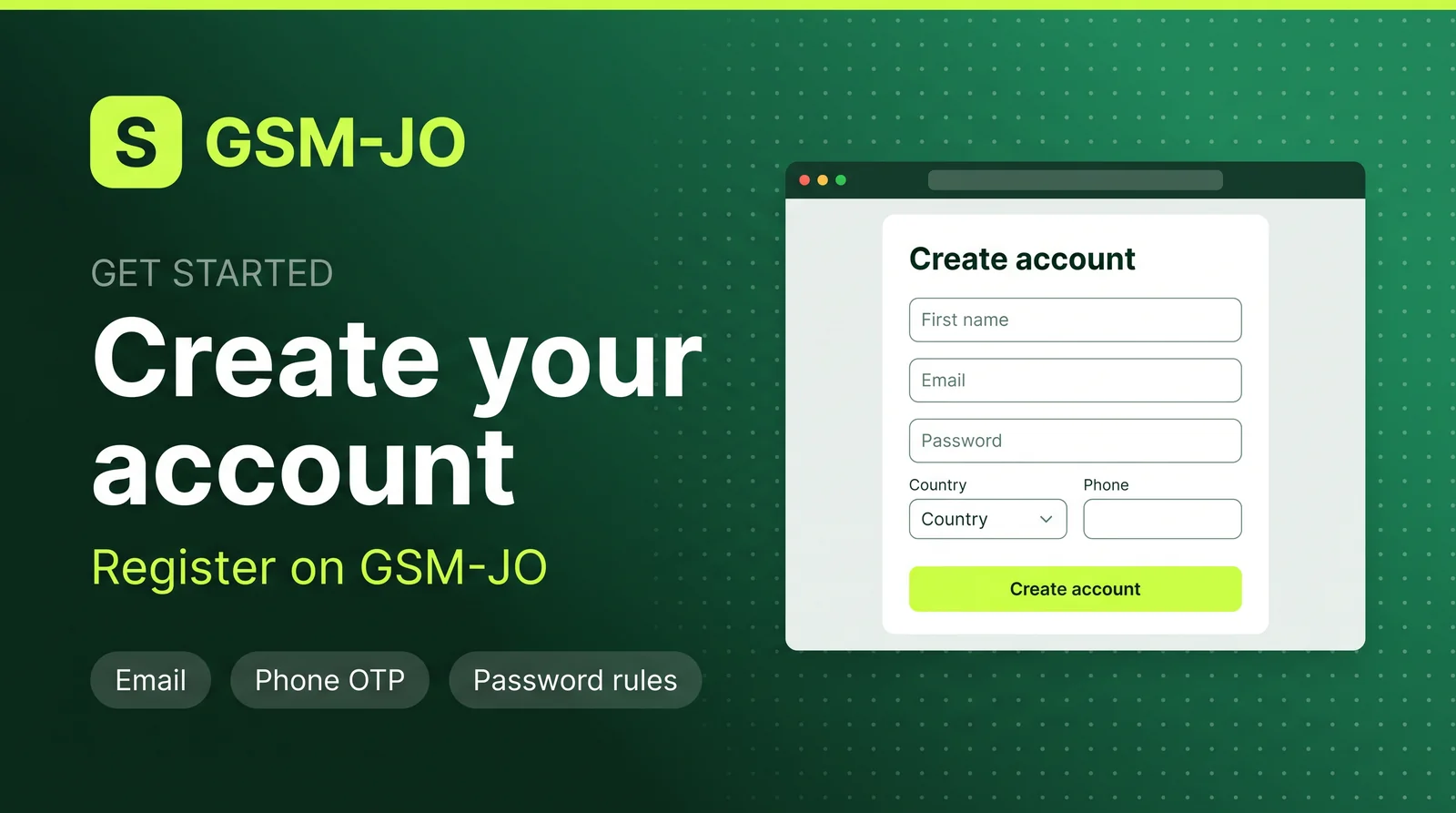
Creating an account on GSM-JO takes only a few minutes and unlocks your orders, downloads, support, and account dashboard. This guide walks through what to prepare, every field on the form, the SMS and email verification codes, the password rules, and what happens after you submit.
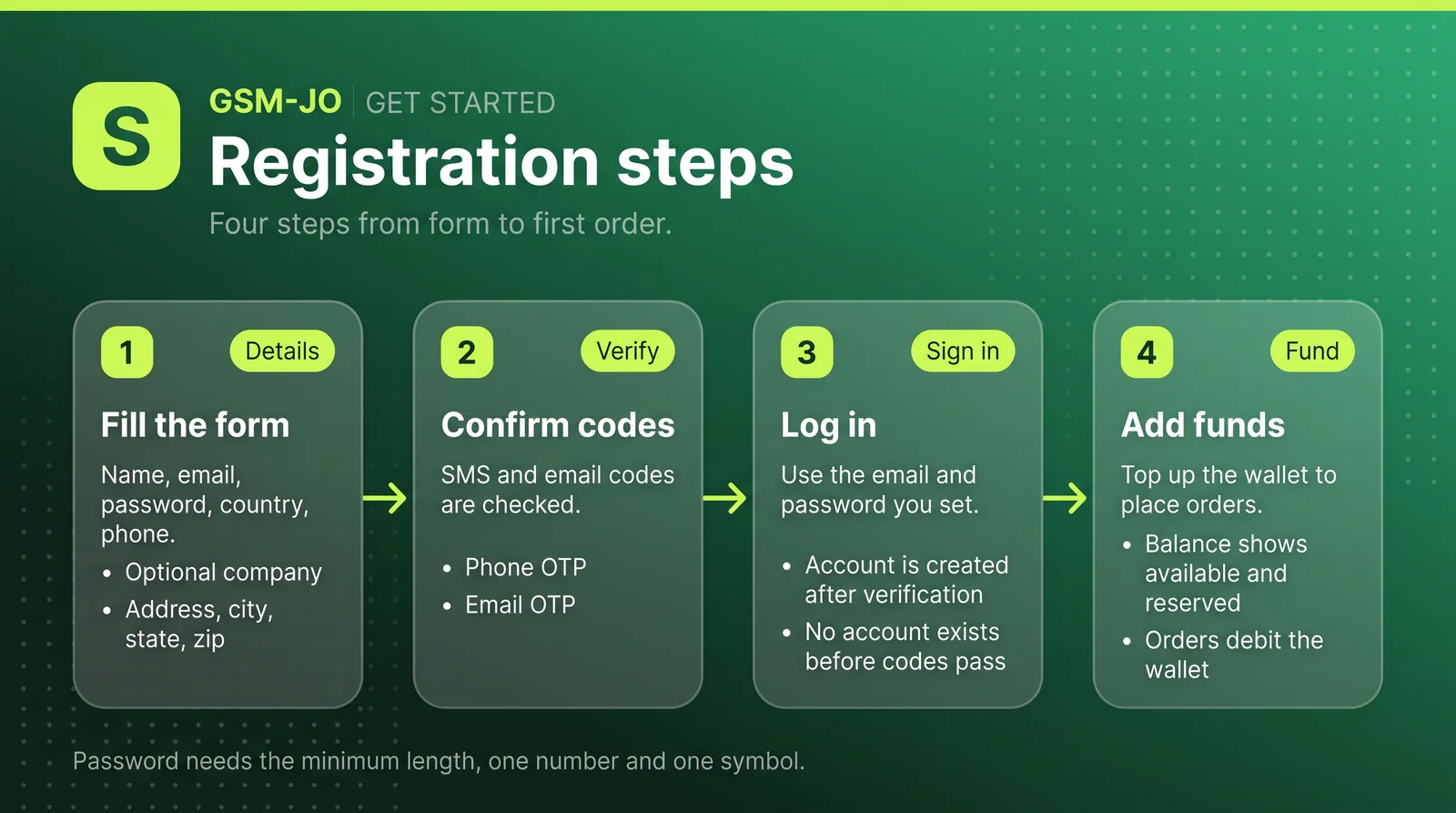
What you need before you start
Registration happens on the registration page. Have these ready before you begin:
- Your first and last name.
- An email address you can check right away, since verification codes may be sent there.
- A phone number that can receive SMS.
- Your address details: country, address, city, state or province, and ZIP or postal code.
- A password you have not used elsewhere.
The company field is optional; everything else is required.
Fill in your details
The form asks for First name, Last name, Email, Password, Confirm password, Country, Phone, Company (optional), Address, City, State / Province, and ZIP / Postal code. Country is a select list built from the platform's static country list, so choose the one that matches your address. The phone number must be valid: digits, plus signs, hyphens, parentheses, and spaces are allowed, and the form accepts 6 to 32 characters.
Verify your phone with an SMS code
Your details are submitted first. If SMS OTP is enabled, the storefront sends the SMS verification request with your phone number, then shows a six-digit code step. Enter the code you receive by SMS.
Verify your email with an email code
If email OTP is enabled, a request goes out with your email, phone, the SMS code, and first name. You then see a six-digit email code step. When both SMS and email verification are on, the SMS code must validate before the email code is sent.
Password rules
Your password must be at least 10 characters long, contain at least one number, and contain at least one symbol — any non-alphanumeric character counts. The password and confirm password fields must match.
A breached-password check against HaveIBeenPwned "Pwned Passwords" runs both in your browser and on the server. If your password appears in a known data breach, registration is rejected with: "This password has appeared in a known data breach. Please choose a different one." Choose something unique.
Codes: expiry, attempts, and resend
Each code is six digits, expires after 5 minutes, and allows a maximum of 5 attempts. Resend buttons are available on the code steps. Requests are rate limited to 5 per 10 minutes per IP address and per phone number or email address.
What happens after you submit
The account is created only when you submit the registration form, after all enabled codes verify. When no extra step is required, you are signed in automatically and redirected to /account.
Depending on store policy:
- If email verification is required, a notice reads "Please check your email to verify your account before signing in." with a "Go to sign in" link.
- If administrator approval is required, your account stays pending administrator approval.
Troubleshooting
Your code expired
Codes expire after 5 minutes. Use the resend button to get a fresh code and enter it promptly.
You hit the rate limit
Requests are limited to 5 per 10 minutes per IP and per phone or email. Wait a few minutes before requesting another code.
Your password was rejected as breached
Choose a different password that meets the rules and has not appeared in a data breach.
General errors
If something fails, look for one of these notices: "Registration failed. Please try again.", "Something went wrong. Please try again.", "We couldn't send the verification code. Please try again.", or "We couldn't send the email verification code. Please try again."